
How-to: Manage Users In SQAI
WARNING: This part is only visible in SQAI for users that are SPACE ADMINS
Updated September 8, 2026
Accessing User Management On Space Level
WARNING: This part is only visible in SQAI for users that are SPACE ADMINS
Make sure you are signed in to SQAI Suite as admin.
Top right, click "Settings" > "Users"
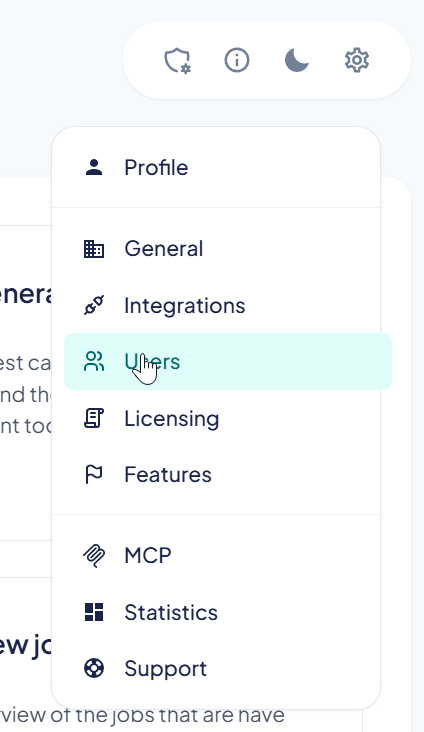
Location of Users tab
Users Page Overview
On the user page there are some features to make it easier for you to manage the users.
- Search field: Quickly find users by name or email.
- Reload: Refresh the user list with the latest data.
- Add user button: Initiate the process to create a new user.
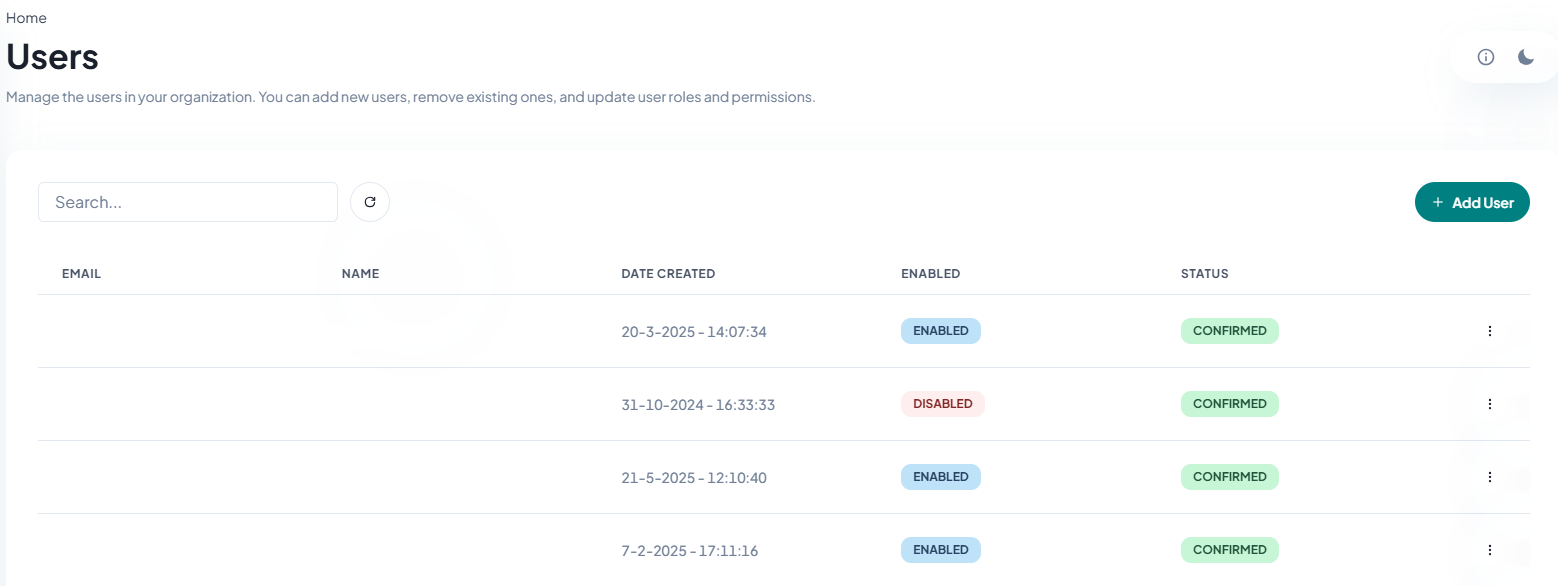
Users page overview
Adding a New User
- Click the Add User button.
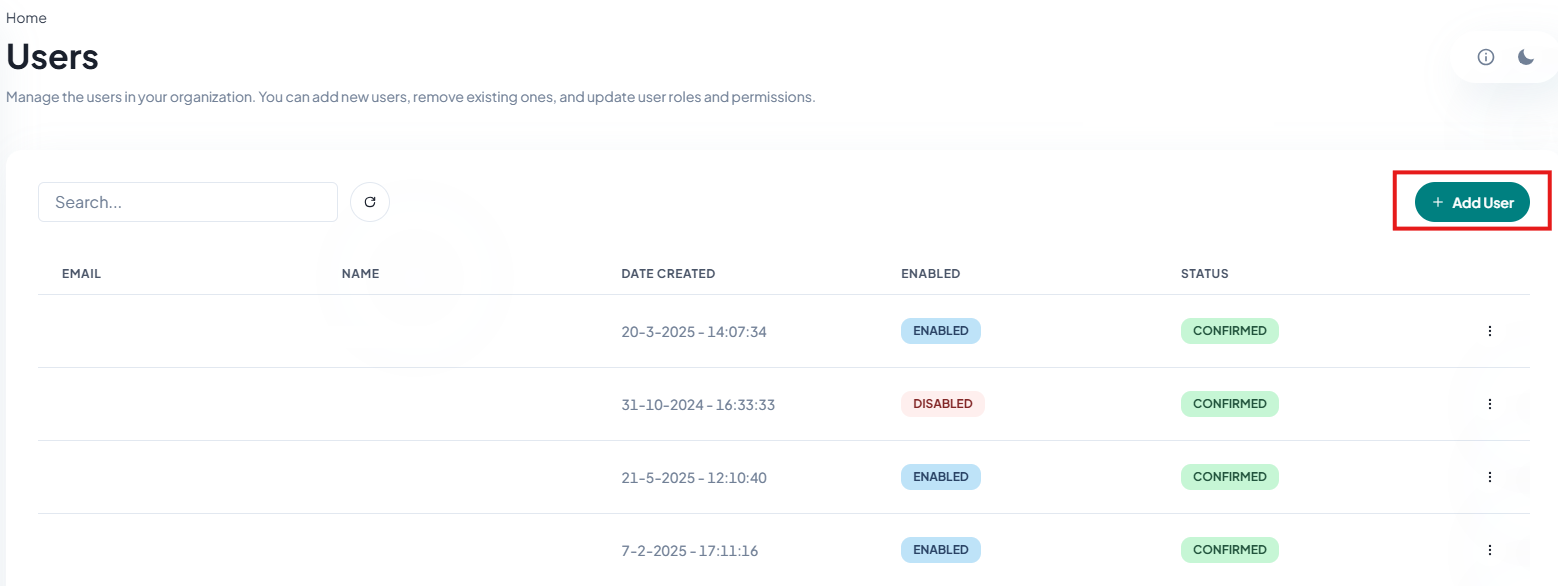
Add User button
- A pop-up appears where you enter:
- Email address of the new user
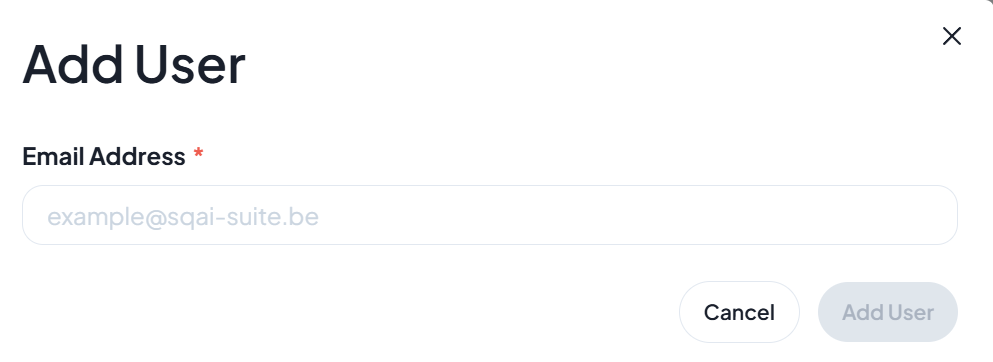
Pop-up add user

Success message
- Confirm your entries and submit
- The new user will appear in the user list with the status "Force Change Password".
- The new user will receive an email with instructions on how to log in and set their password.
- For more details about the login process
Status will change to “CONFIRMED” when the user has **successfully **changed the password.

Status of Force Change Password

Status “CONFIRMED”
Managing Users
For each user in the list, click the three dots to open the action menu:
- Enable/Disable:
Activate or suspend the user’s access. - Delete:
Permanently remove the user from your organization.
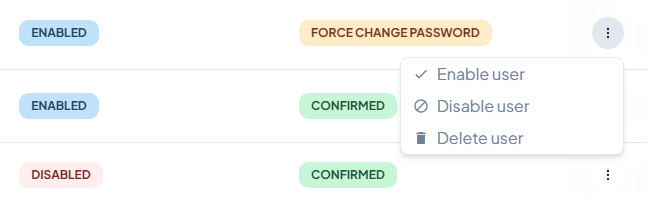
User options
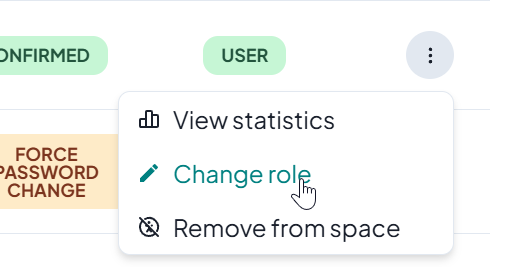
Or to change the role of a user to space admin, you can click change role:
Related Articles
Did this answer your question?