
Windsurf (MCP)
The SQAI Suite MCP (Model Context Protocol) server acts as a centralized intelligence layer for your development environment. It connects your code, user s
Updated September 8, 2026
The SQAI Suite MCP (Model Context Protocol) server acts as a centralized intelligence layer for your development environment. It connects your code, user stories, and test management tools into a single, real-time understanding of the system under development, which Windsurf's "Cascade" agent can then reason over.
Added Value: A Context-Aware Bridge
By connecting the SQAI MCP to Windsurf, you create a direct link between the Cascade AI agent and your broader project data:
- Unified Intelligence: It connects code repositories, user stories, and documentation so Cascade understands the relationship between different project artifacts.
- Automated Traceability: Easily perform tasks like automated test generation or impact analysis directly from your chat or coding session without leaving the editor.
- Continuous Updates: As you modify your codebase or update external documentation, the MCP enables Cascade to maintain an accurate, up-to-date system model.
1. Generate Your API Key
You need an authentication key to securely connect the Windsurf IDE to the SQAI Platform.
- Log in to the SQAI Platform.
- Go to the MCP Configuration page: app.sqai-suite.com/mcp.
- Generate and copy your unique API Key.
2. Setup Instructions
Windsurf allows you to configure MCP servers through its built-in configuration panel or by directly editing the global mcp_config.json file.
2.1 Access the Configuration Panel
Open Windsurf.
Press
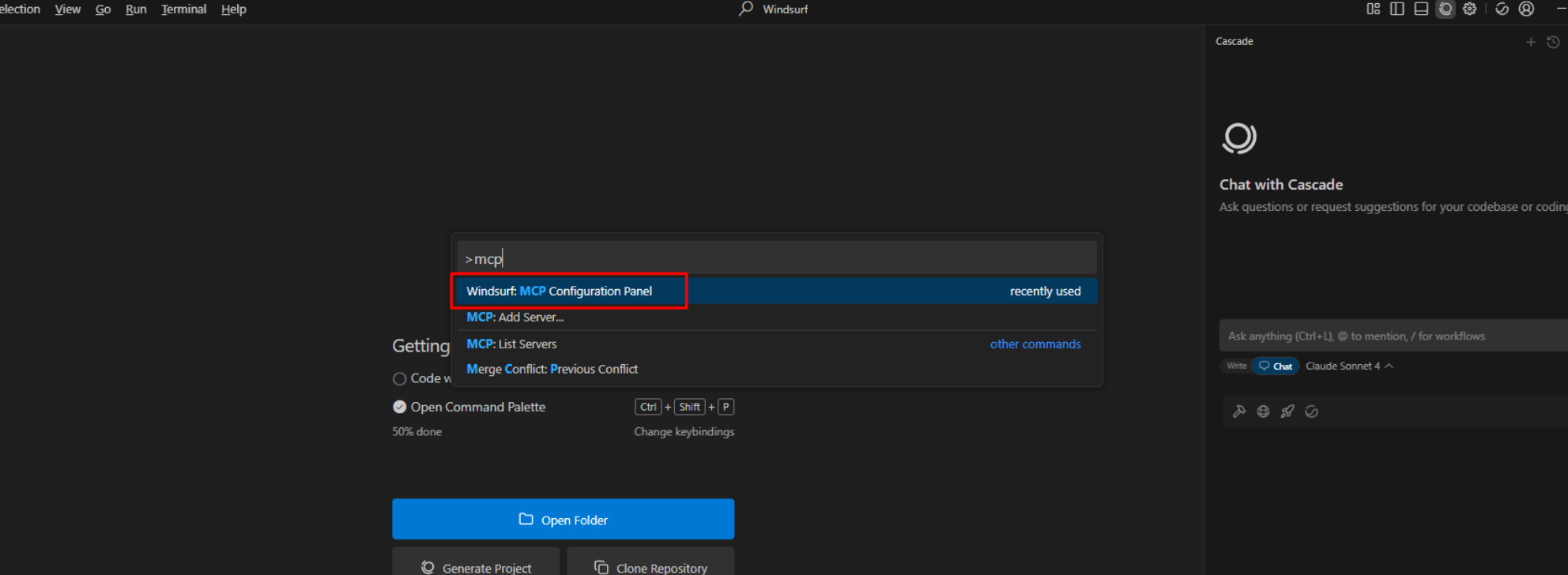
CTRL + SHIFT + P(orCMD + SHIFT + Pon macOS) to open the Command Palette.Search for and select: "Windsurf: MCP Configuration Panel".
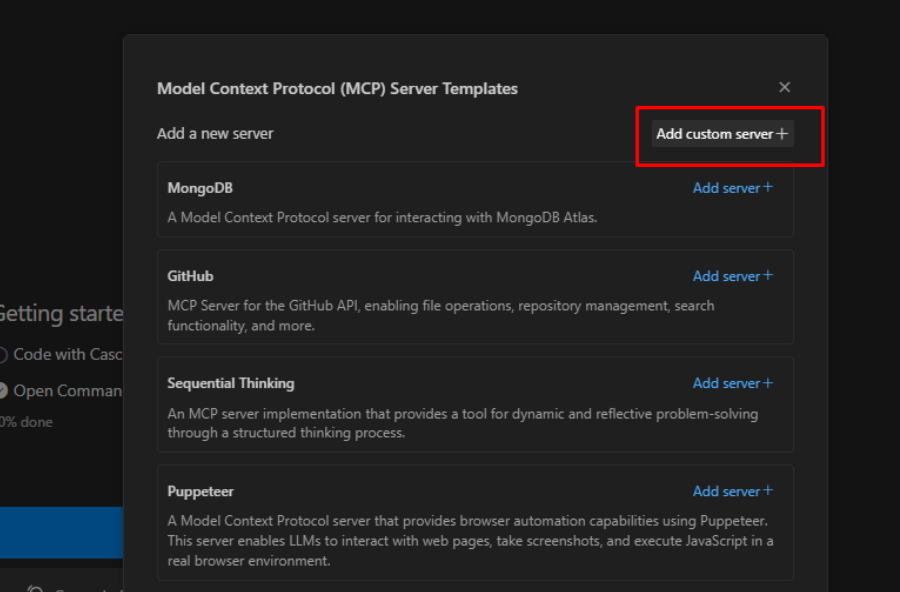
Click Add custom server +.
2.2 Edit the Configuration File
This will open the global configuration file, typically located at ~/.codeium/windsurf/mcp_config.json.
Paste the following JSON snippet into the mcpServers object. Replace `` with the API key you generated in Step 1.
JSON
{<br> "mcpServers": {<br> "sqai-suite": {<br> "serverUrl": "https://api.sqai-suite.com/mcp/",<br> "headers": {<br> "Authorization": "Bearer <YOUR_TOKEN>"<br> }<br> }<br> }<br>}
3. How to Use
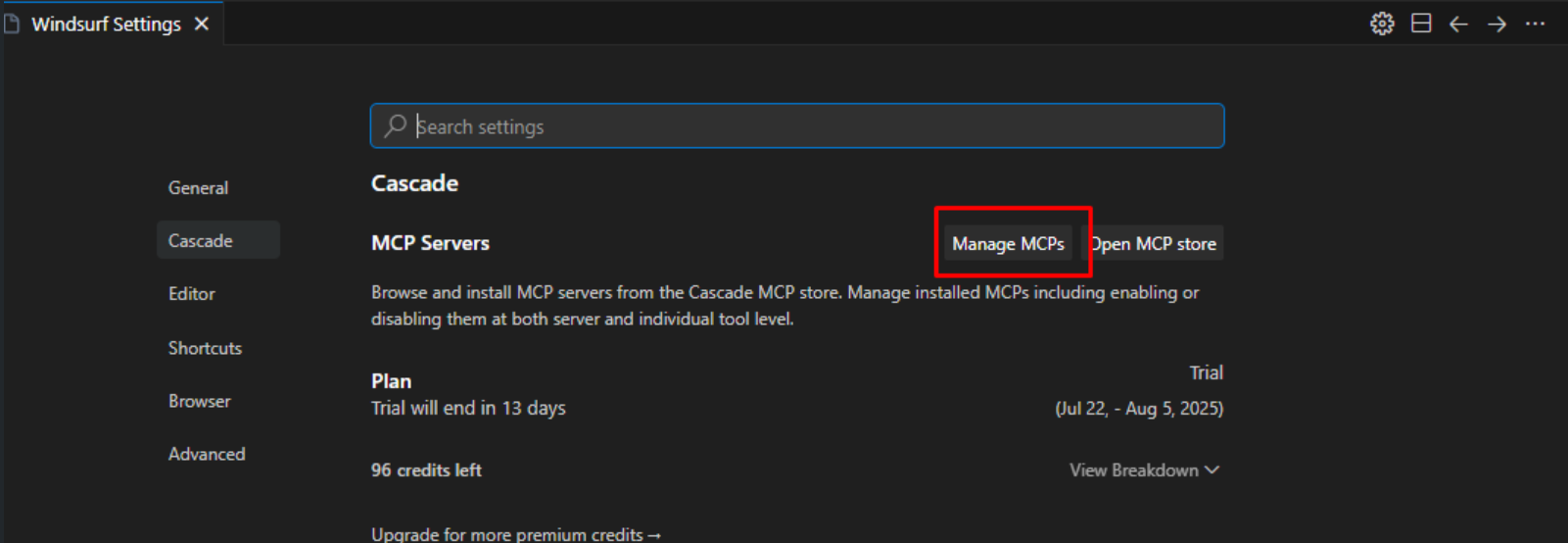
Verify Connectivity: Go to File > Preferences > Windsurf Settings and click Manage MCPs to see the status of your connection.
Manage Tools: In the "Manage MCPs" panel, you can see the specific tools provided by SQAI Suite (e.g.,
get-test-case,get-work-item) and toggle them on or off individually.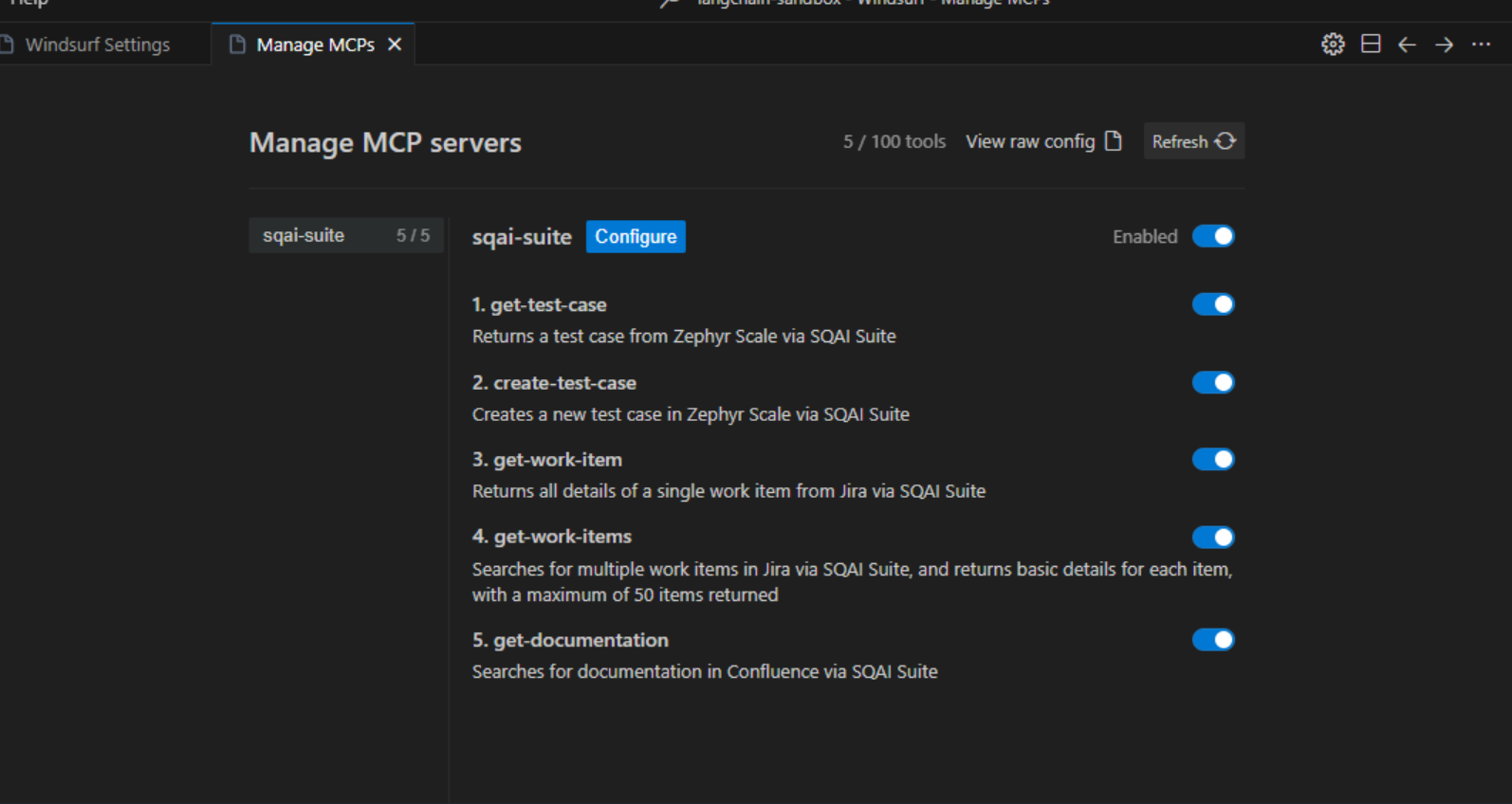
Interact with Cascade: Open the Cascade panel (
CTRL + L) and ensure it is in a mode that supports tool calling.Prompt Example:
"Analyze this file and retrieve the related work items from Jira via SQAI Suite to ensure all requirements are met."
Windsurf Cascade Additional Info
Cascade: Leveraging different tools - MCP Intro | Windsurf University
This official walkthrough from Windsurf University explains how Cascade uses MCP servers to access external tools and data, providing practical context for your setup.
Troubleshooting
Issue | Potential Cause | Solution |
Server not appearing | Cache issue. | Click the Refresh button in the Windsurf Settings > MCP Servers section. |
Connection Errors | Invalid Token. | Ensure your header is exactly |
Tools Unresponsive | Server URL. | Verify the |
Viewing Logs | Unknown failure. | Open the Command Palette and select "Developer: Show Logs...", then choose Windsurf to see detailed connection logs. |
Related Articles
Did this answer your question?