
How-to: SQAI Native Test Management
Updated September 10, 2026
SQAI Native Test Management is an AI-native workspace built directly into SQAI Suite. It serves as a full-featured, out-of-the-box replacement for third-party test management tools like Xray, Zephyr, or TestRail—with zero per-seat licensing fees.
While replacing paid test management add-ons, Native Test Management maintains full integration with your primary ALM and development ecosystem (Jira, Azure DevOps, Confluence, GitHub, GitLab, Bitbucket), giving you end-to-end requirement traceability and automated testing capabilities in one central location.
Why Use SQAI Native Test Management?
Eliminate License Costs: Full test management functionality—including folder hierarchies, test runs, execution history, and release milestones—is included for unlimited users per workspace.
Seamless SDLC Integration: Pull requirements directly from Jira or Azure DevOps, bind generated tests to user story keys, and push test automation code straight to your Git repositories as Pull Requests.
Unified Workspace: Store, organize, execute, and monitor test coverage in the same platform where your specs are analyzed and your test cases are generated.
Workspace Navigation & Key UI Components
Navigate to Test Management in the left sidebar to access the three core modules:
Test Management
 ├── Test Cases    (Design, organize, edit, and archive scenarios)
 ├── Executions    (Group tests into execution plans & record run results)
 └── Milestones    (Track release readiness against target deadlines)
The Test Cases Dashboard
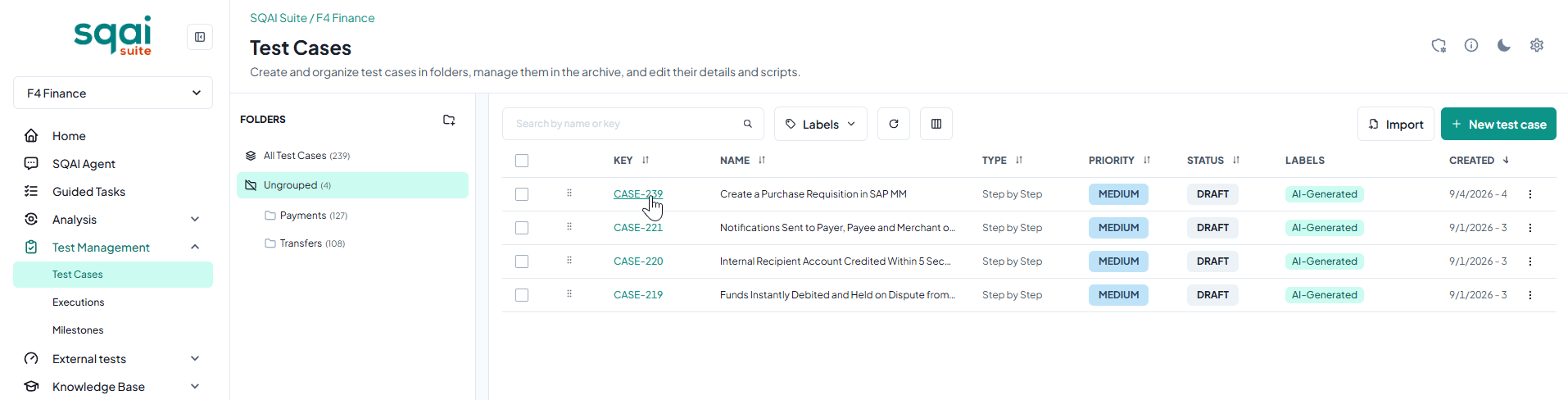
When viewing Test Management > Test Cases, the dashboard is split into two primary areas:
1. Folders & Test Suites (Left Panel)
All Test Cases: View the total repository count across the entire project.
Custom Folders: Organize test cases logically into functional suites (e.g., Payments, Transfers, Checkout).
Ungrouped: Quickly identify newly generated or imported test cases that haven't yet been categorized.
2. Test Cases Table (Main View)
Column | Description |
KEY | Unique identifier generated for every test case (e.g., |
NAME | Descriptive title of the scenario (e.g., Create a Purchase Requisition in SAP MM). |
TYPE | Test format, such as |
PRIORITY | Criticality rating ( |
STATUS | Lifecycle stage ( |
LABELS | System and custom tags (e.g., |
CREATED | Timestamp and batch sequence. |
Core Workflows
1. Generating & Reviewing AI Test Cases
When a Guided Task or SQAI Agent generates test cases from a Jira ticket or Azure DevOps work item:
The test cases land directly in Test Management > Test Cases.
New items receive the label
AI-Generatedand default toSTATUS: DRAFT.Select any test case to review its steps, preconditions, expected outcomes, and linked Jira/ADO keys.
Edit steps if necessary and update the status to
APPROVEDorREADY.
2. Organizing Test Suites
Use the Folders panel to create custom folders representing modules or microservices.
Select test cases using the multi-select checkboxes and drag or move them into designated folders.
Use the Labels filter dropdown at the top of the table to quickly filter items tagged with
AI-Generated.
3. Creating or Importing Tests Manually
Click + New test case in the top right to build custom step-by-step test cases manually.
Click Import to bring in existing test suites from CSV or JSON format.
Ecosystem Integration & Traceability Flow
SQAI Native Test Management keeps your existing issue-tracking and version-control systems at the center of your delivery pipeline:
┌─────────────────────────┐
│ Jira / Azure DevOps     │  1. Extract requirements & story context
└───────────┬─────────────┘
            │
            ▼
┌─────────────────────────┐
│ SQAI Native             │  2. Store, organize & track test cases
│ Test Management         │     (Linked to Jira/ADO issue keys)
└───────────┬─────────────┘
            │
            ▼
┌─────────────────────────┐
│ GitHub / GitLab / ADO   │  3. Push generated Playwright/Cypress/
└─────────────────────────┘     Selenium automation scripts via PR
Requirements Connection: SQAI reads Jira/Azure DevOps tickets and Confluence pages to generate relevant test cases.
Traceability Links: Test case keys (
CASE-239) maintain bidirectional metadata links to their source Jira or Azure DevOps user stories.Automation Push: Automated test scripts written for Playwright, Cypress, or Selenium are committed straight to your Git repositories as Pull Requests.
Coverage Health: The Traceability & Drift view maps Jira/ADO requirements against native test cases and repo code to highlight test gaps or stale documentation.
Best Practices
Filter by
DRAFTStatus: Lead QA engineers should regularly filter byDRAFTstatus to inspect and validate new AI-generated scenarios before assigning them to Executions.Maintain Folder Hygiene: Keep test cases organized inside feature-specific folders rather than leaving them in Ungrouped to make test run creation faster.
Keep Jira / ADO Keys Intact: Do not remove the linked requirement keys from test case metadata; these are required for automated documentation drift detection and traceability maps.
Related Articles
Did this answer your question?